• I decided to title my PComp final “Debugging Myself at ITP.” My goal was to create something practical—something I could actually see myself using or expanding in the future. I also wanted to incorporate as many of the e-labs and techniques we learned this semester as possible. Since I completed all of my finals independently, I chose to merge my PComp final with my ICM project.

    My initial idea was to build a transcription-based service. I kept thinking about the closed captions we see on TV and wondered: What if the computer could detect what we’re saying in real time, and what if those words could visually shift as we speak? That led me to experiment with typography, so I uploaded three Google fonts and began building the foundation in p5.js.

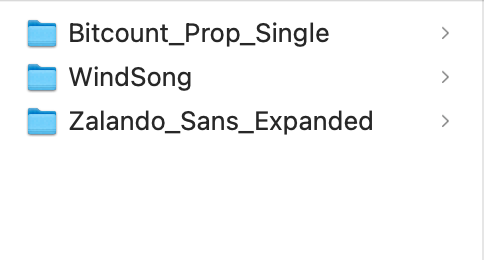
    These are the three fonts that I started with below. I uploaded these into P5.
    I started with a basic black canvas, and started to work on the speech recognition coding. That was most important to nail down as I wanted it to be as concise as possible.
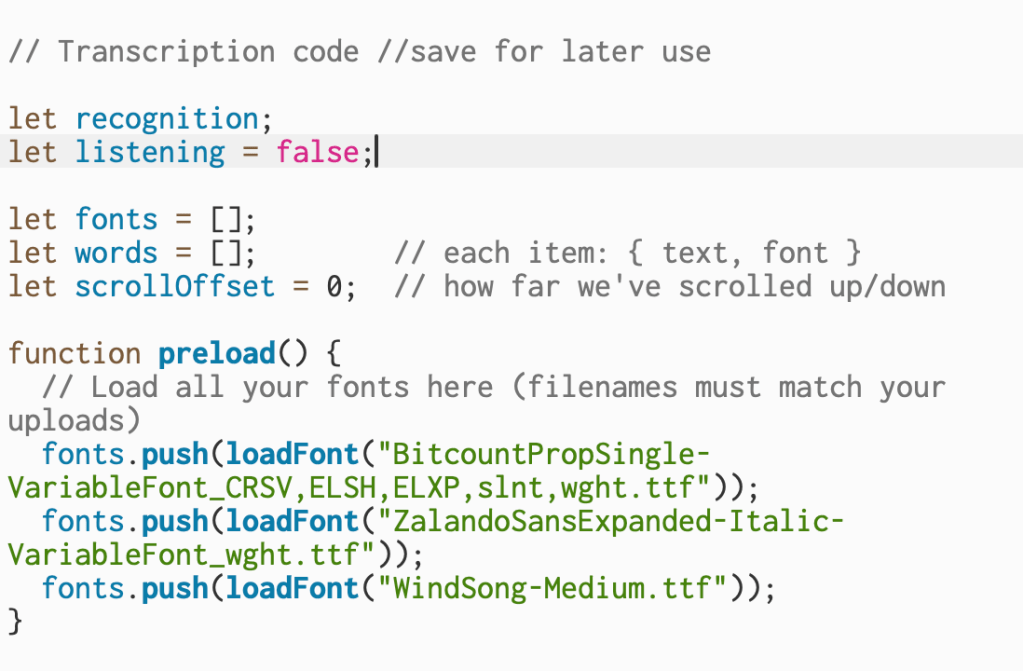
    This code declares the variables that handle speech recognition, track whether the mic is active, store the uploaded fonts, and keep each spoken word with its assigned font.
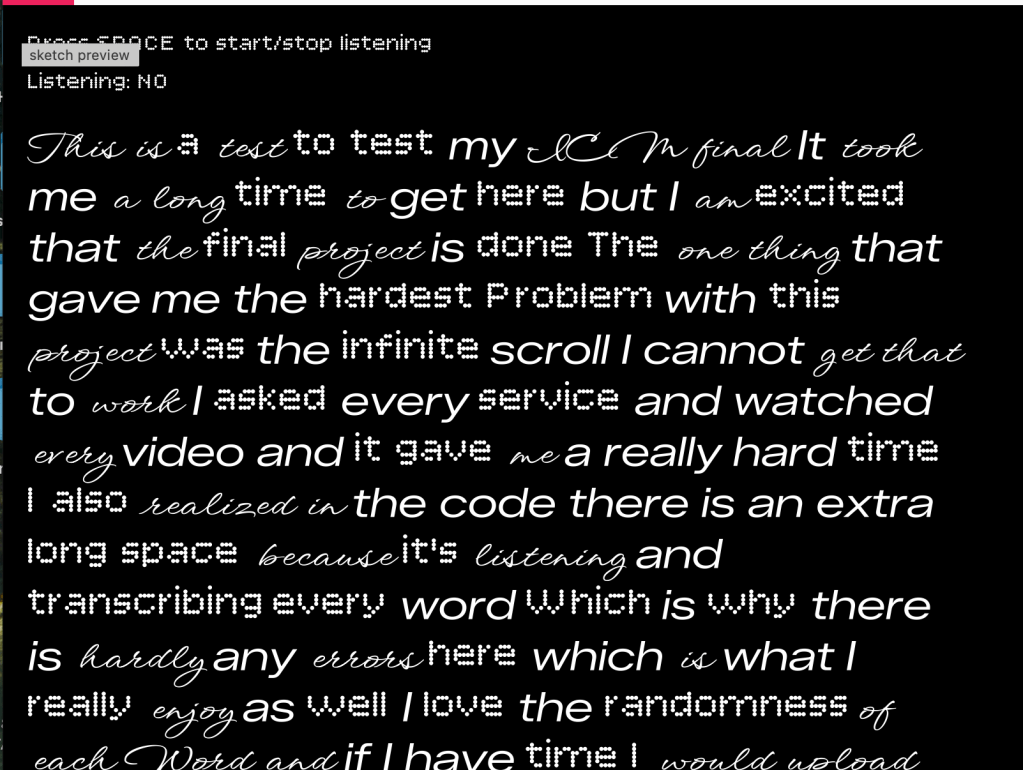
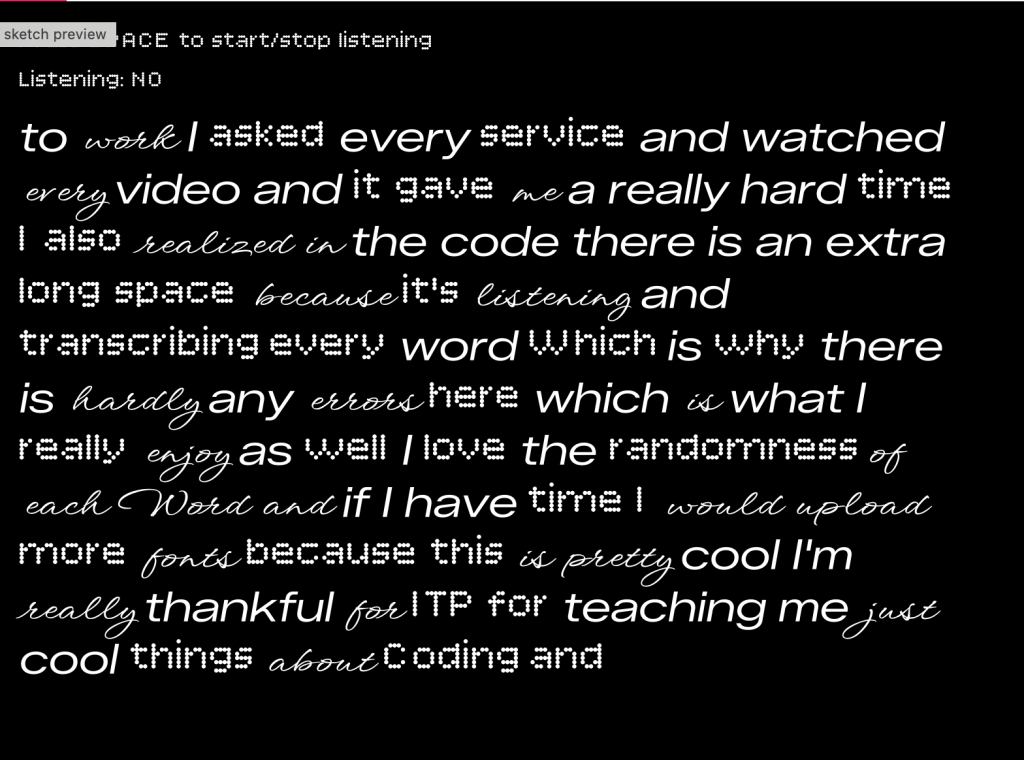
    Once I nailed down the speech recognition, through the code I am managing live speech input, assigning random fonts to each word, and keeping the text moving upward as more words appear. As you are speaking to the black square it is randomizing your words based upon the three typography options.

    Project w/o Pcomp: https://editor.p5js.org/itsnandibby/full/LsYB4n1j-

    Now, it was time to add the fun stuff, and include the breadboard. At first, I started with a potentiometer because I was familiar with how to build one from my midterm.
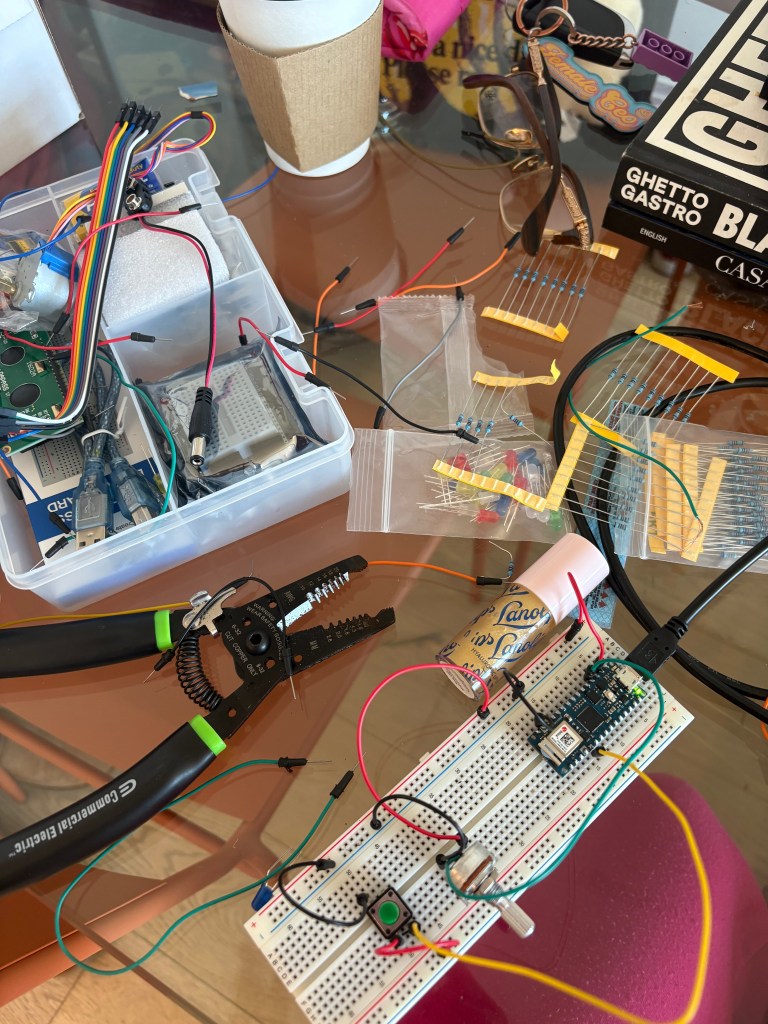
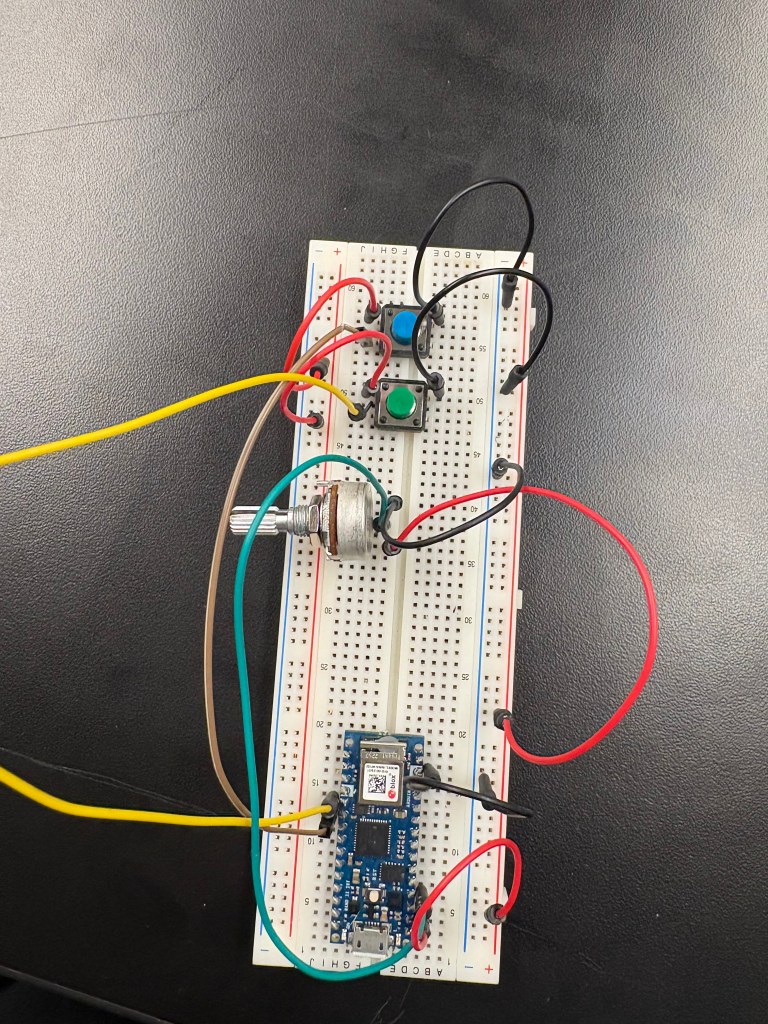
    After I built the potentiometer, I added two buttons. The goal was now to be able to change the background and fade it from pink to orange with the potentiometer, change text size with one button, and randomize the text with the other button. After I was able to piece together the breadboard, I opened Arduino to build the code for the breadboard. I wanted to make sure both buttons and the potentiometer worked before I updated my code in P5.

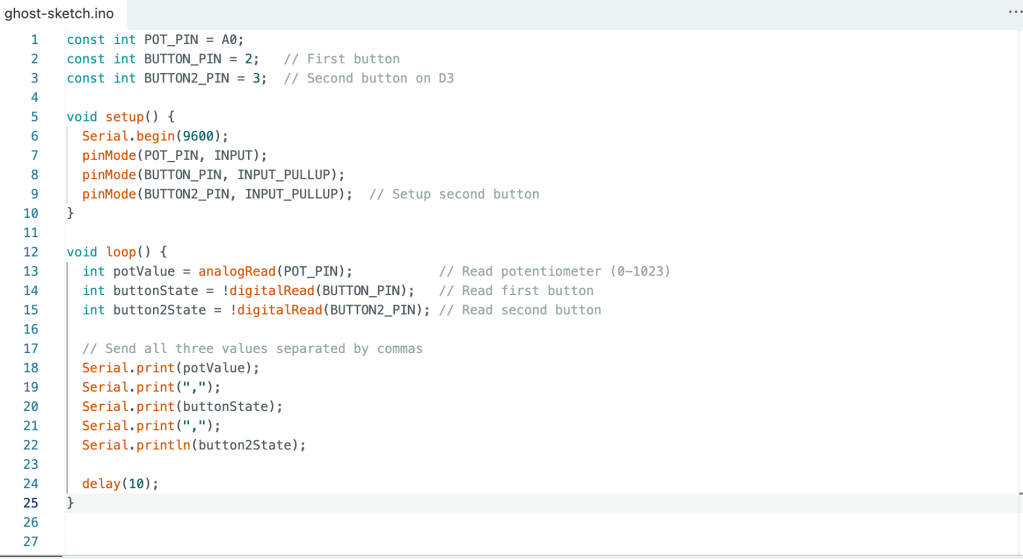
    In the Arduino code, I set up the potentiometer on pin A0 and the two buttons on pins 2 and 3, using INPUT_PULLUP to avoid needing external resistors. The code reads the potentiometer value (0-1023) and both button states, then sends all three values to P5 via serial communication separated by commas.

    In P5, I mapped the potentiometer value to smoothly interpolate the background color from soft pink (RGB: 255, 182, 193) to warm orange (RGB: 255, 165, 0) using the lerp() function. Button 1 randomizes all the text by reassigning each word a random font from my collection of five custom fonts. Button 2 cycles through three text sizes (32, 48, and 64 pixels) each time it’s pressed, allowing the text to grow progressively larger before looping back to the smallest size. All these controls work in real-time, even while actively recording speech.
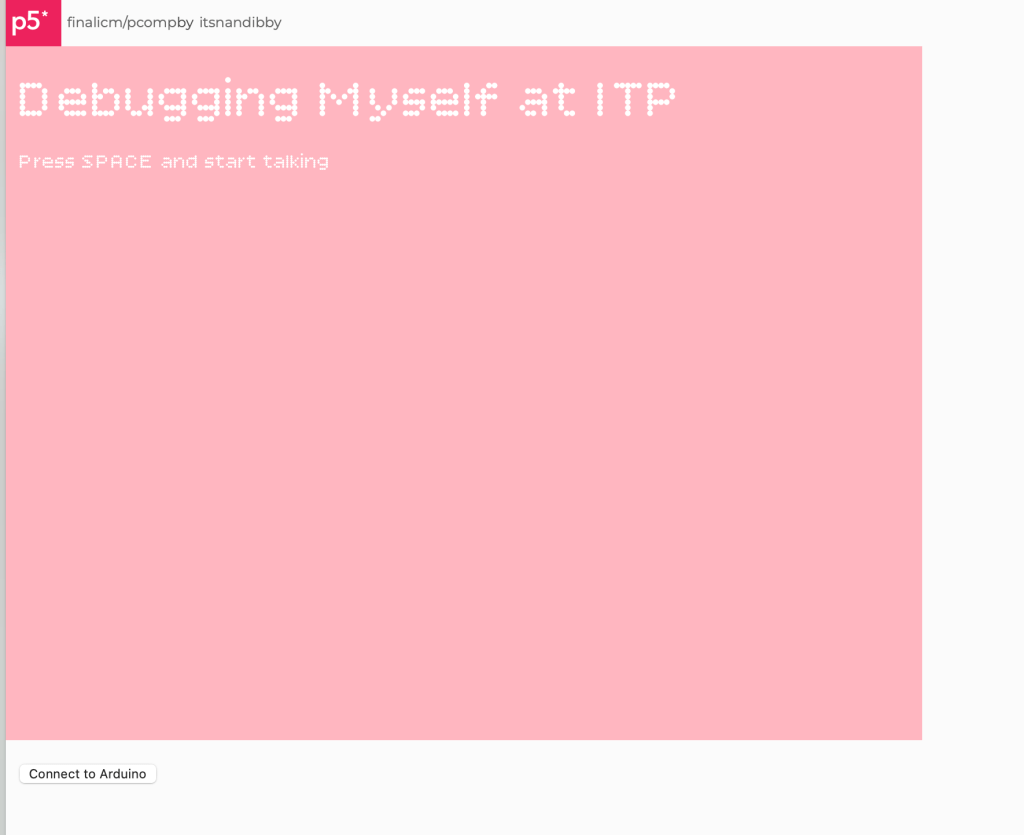
    I added some style elements like adding a title and changing the font to that however, after the breadboard was built I went into testing.
    A fast video below of me trouble shooting


    Here is my friend playing with my final project

    And that’s my final project! Thank you Danny!

    Final Project w/ Pcomphttps://editor.p5js.org/itsnandibby/full/WauQLFTpg
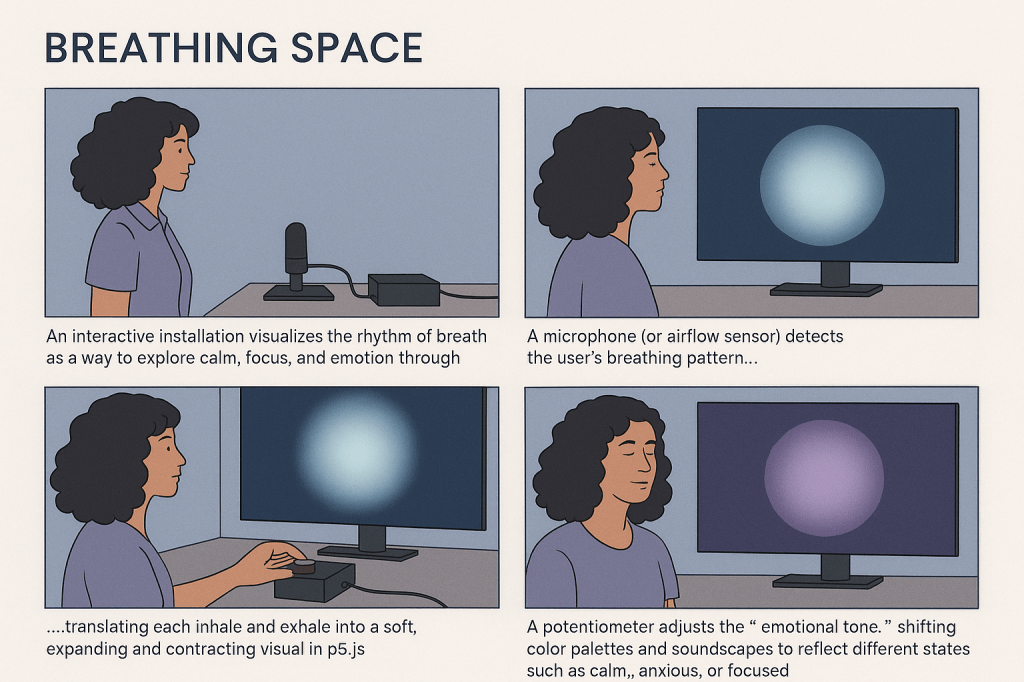
  • For my final project for P Comp, I want to focus on my personal reality. This semester has had its ups and downs, and I hope to create an interactive installation that offers affirmations and visuals to motivate students, both here and in the real world.

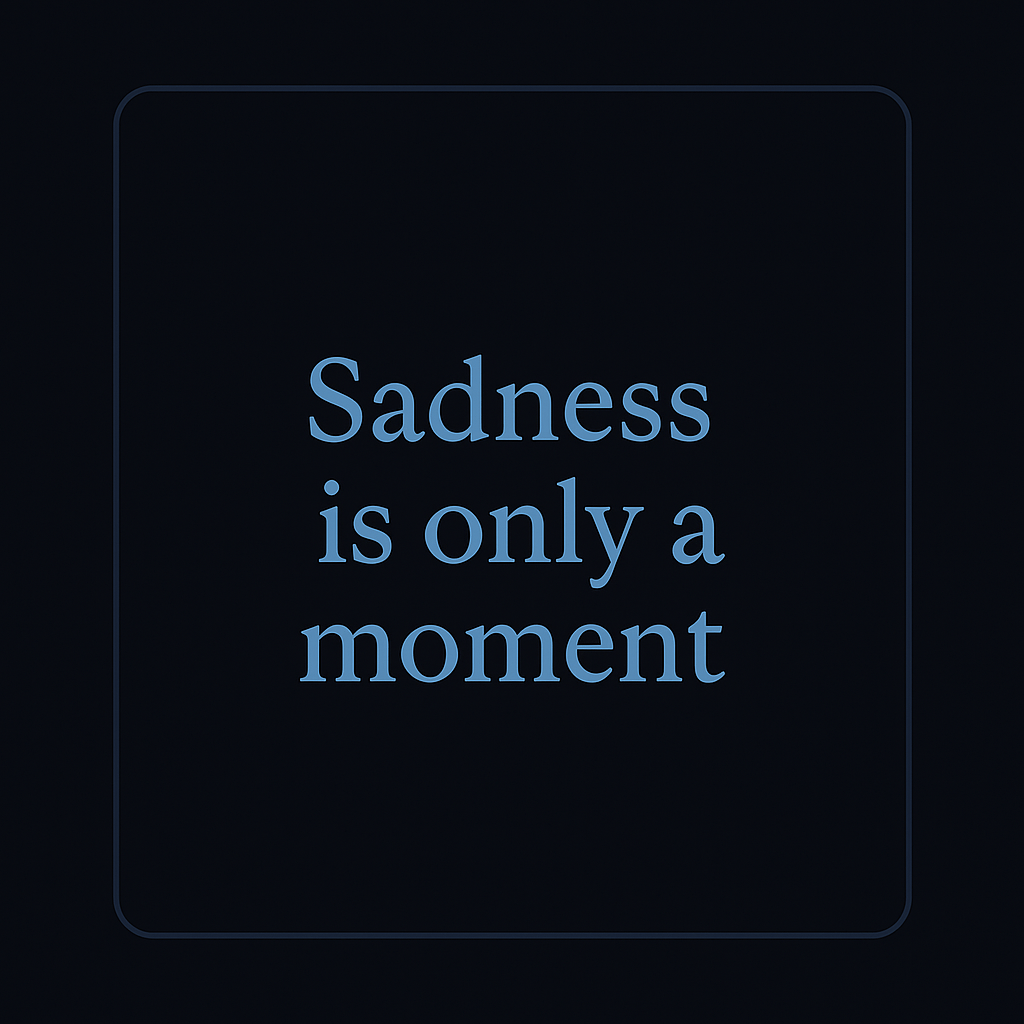
    For example, if someone breathes into the microphone and it detects sadness, a quote like “Sadness is only a moment” will appear. If it detects happiness, it might say, “Stay in your season and spread joy.”

    As seasonal depression approaches and many of us spend time away from friends and family, this project serves as a gentle reminder to stay grounded and on track.

    I would like to strengthen this idea with audio also coming out of the screen/microphone once it detects your mood, reading out the affirmations.

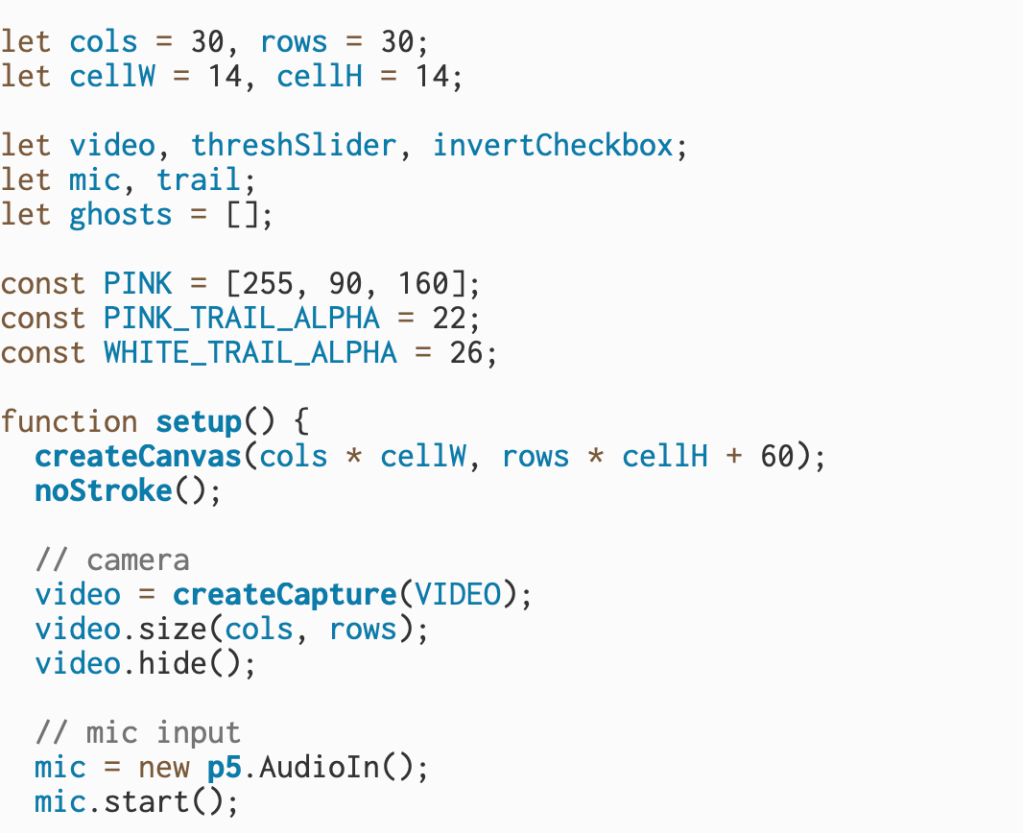
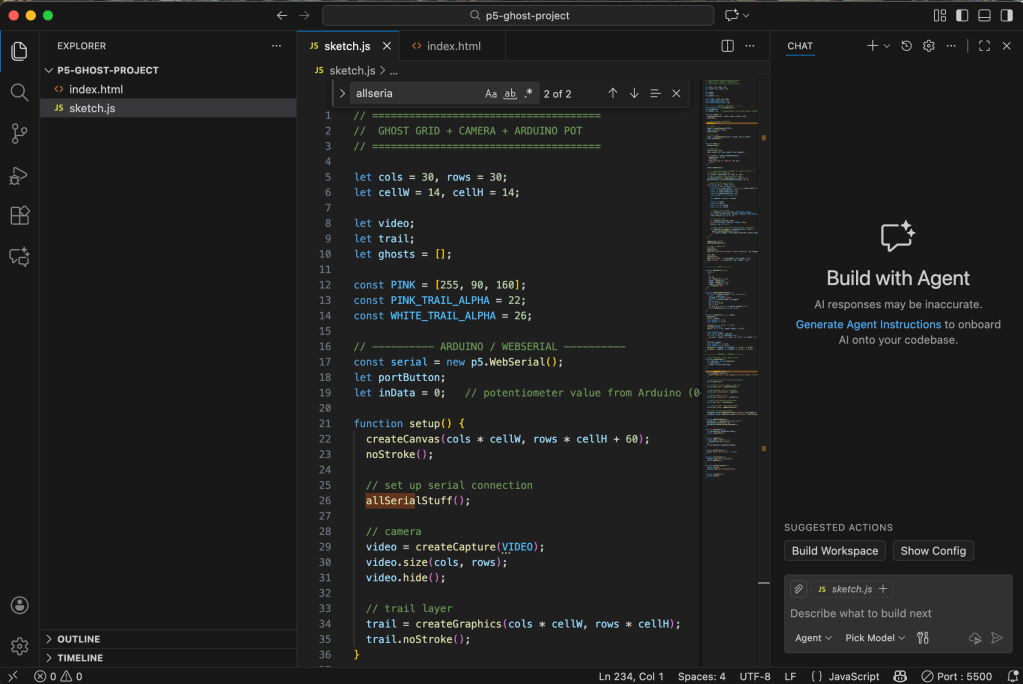
  • This block of code sets up the foundational elements of an interactive sketch that uses both the webcam and microphone to drive visual effects. It begins by defining a grid layout of 30 columns and 30 rows, with each cell measuring 14 pixels wide and tall—this sets up a low-resolution representation of the webcam feed that will later be used to create a pixelated visual. Several global variables are declared for the webcam (video), a threshold slider (threshSlider), an invert toggle (invertCheckbox), microphone input (mic), a graphics buffer (trail) used to leave fading trails behind drawn elements, and an array to store animated “ghosts” that appear based on sound input.

    Next, the code defines a pink color using RGB values (PINK = [255, 90, 160]) and sets alpha values for both pink and white trails to control how they fade visually. Inside the setup() function, the canvas is created with enough space to hold the grid and an additional UI strip at the bottom. The webcam is initialized using createCapture(VIDEO) and resized to match the grid dimensions (30×30), then hidden from the DOM since it will be manually drawn.

    The microphone input is also initialized with new p5.AudioIn() and started so it can detect the user’s voice or other ambient sounds. All of these elements lay the groundwork for a piece that will use brightness and sound to create interactive visuals—namely, ghost-like figures that respond to the user’s volume and webcam lighting.

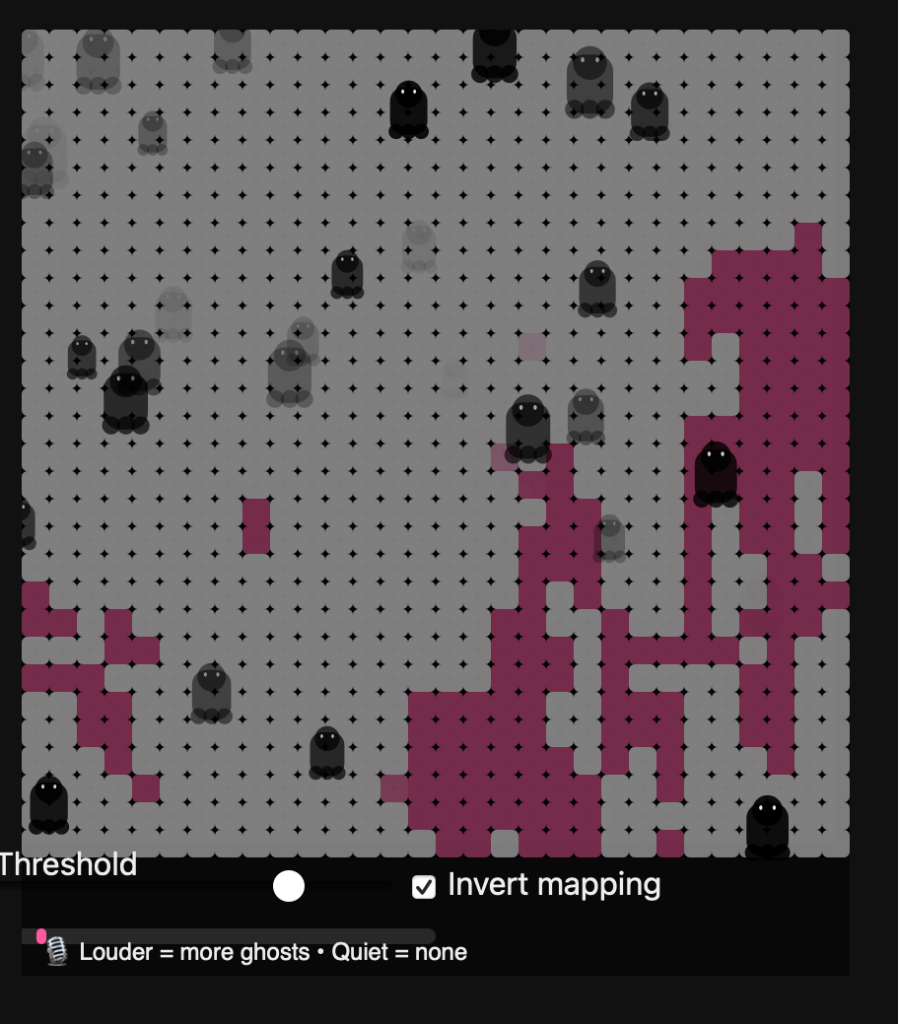
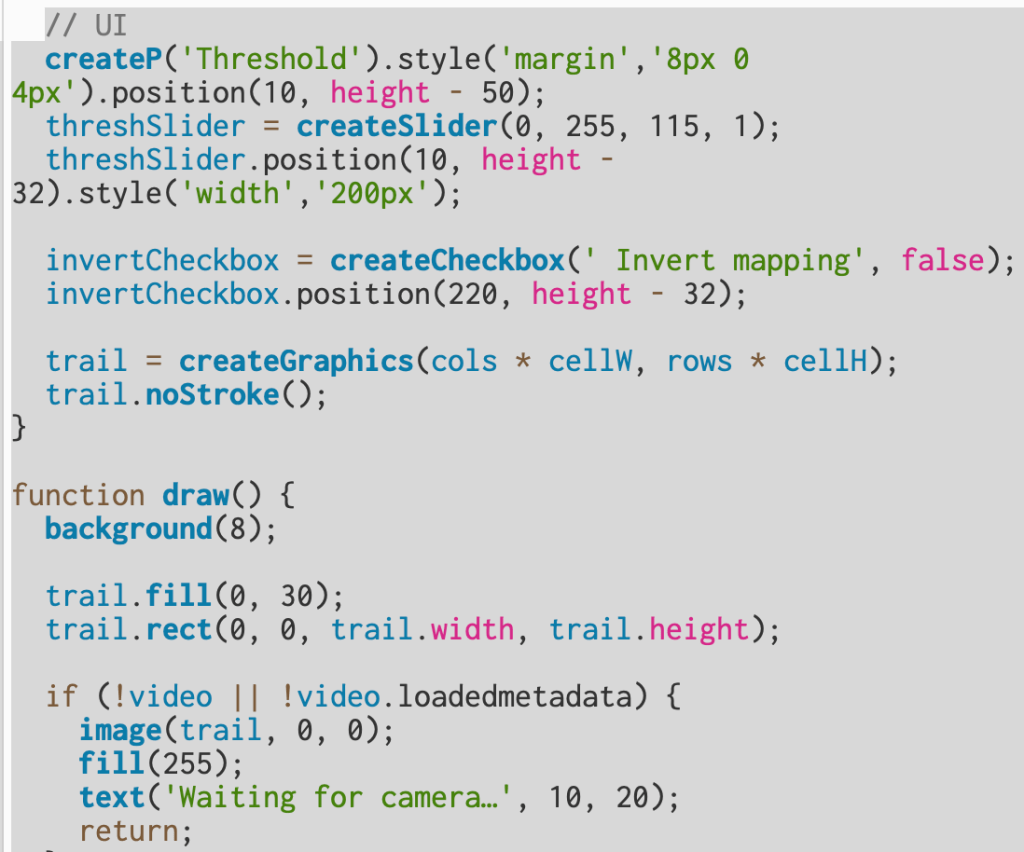
    This section builds the interface and defines how the camera and microphone data are turned into the animated visual. The UI elements include a threshold slider and an invert checkbox that let you control how bright or dark areas from the webcam appear on screen. The slider, created with createSlider(0, 255, 115, 1), sets a brightness cutoff—pixels brighter than this value become white, and darker ones become pink. The checkbox toggles that logic, so you can flip which areas show up as white versus pink. Both controls are positioned near the bottom of the canvas for easy access.

    The trail graphic, made with createGraphics(), acts like an off-screen canvas used to draw fading color trails. Every frame in draw(), the background is reset to a dark gray (background(8)), and a semi-transparent black rectangle is drawn over the trail layer to slowly fade old visuals instead of clearing them completely—this creates a ghostly persistence effect.

    Next, the code checks if the webcam is ready; if not, it displays “Waiting for camera…” and pauses rendering. Once ready, it reads pixel brightness from the webcam image (video.loadPixels()), compares it to the threshold, and draws a 30×30 grid of small rectangles representing light and dark areas. White cells mark bright regions of the camera feed, while pink cells represent darker ones.

    The microphone level (mic.getLevel()) is also read each frame and mapped to a normalized “loudness” value between 0 and 1. This loudness determines how frequently new “ghost” particles are spawned. When the sound is louder, more ghosts appear in white regions; when quiet, none appear. Each ghost is created using the makeGhost() function, which gives it random movement and transparency. Over time, ghosts fade and drift upward, producing a floating effect.

    Finally, the program displays a sound meter bar and a label that reminds the user: the louder the mic input, the more ghosts appear—turning sound and brightness into a reactive, visual experience.

    This final section ties the whole sketch together visually and interactively.

    At the end of the draw() function, image(trail, 0, 0); places the fading trail layer on top of the background, blending together the motion and color history from previous frames. Immediately after, updateAndDrawGhosts() is called — this function animates every ghost stored in the ghosts array. Each ghost moves upward (vy is a small negative speed) and sways side to side using a sine wave (swayA and wiggle control how wide and smooth that motion is). Over time, each ghost’s transparency (a) fades out, and when it becomes invisible or drifts off-screen, it’s removed from the array.

    The drawGhost() function is responsible for the actual shape of the ghost. It builds a stylized cartoon ghost using basic p5 shapes — a circular head, a rectangular body, and three “scallop” circles at the bottom for the wavy edge. The eyes are drawn as two small white ellipses, giving each ghost personality. The size (r) and transparency (alpha) vary for each ghost, making the scene feel more dynamic and layered.

    After the ghosts are drawn, drawMicMeter(loudness) creates a small volume bar at the bottom of the canvas. The bar’s width grows with microphone volume, giving the user a live reading of their sound level. Finally, a short label is displayed below it — “🎙 Louder = more ghosts • Quiet = none” — which explains the relationship between sound and visuals. Together, these functions turn sound and motion into a responsive, ghostly mosaic that fades, drifts, and reacts in real time.

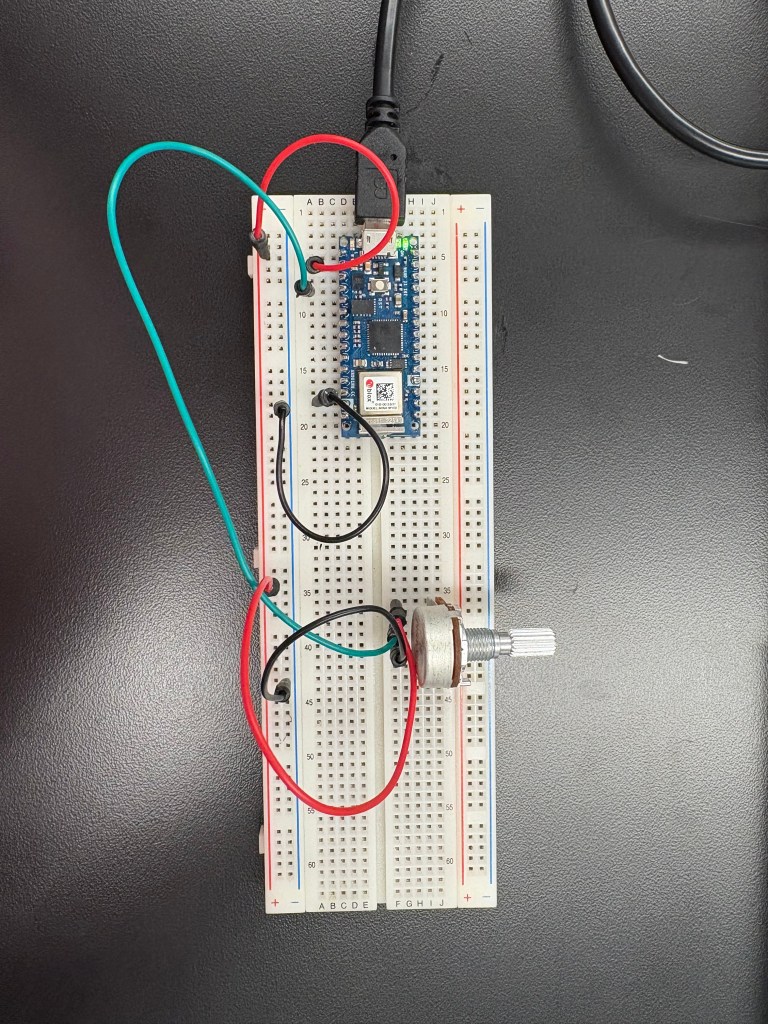
    After getting the main structure of my sketch working, I moved on to integrating my Arduino. I connected my breadboard and, to simplify things, I removed all the sound elements from this phase of the project. Instead, I focused on using the potentiometer as a physical controller. The goal was to let the knob adjust the lighting inside my p5 sketch—something tangible that reacts directly on screen.

    This part of the process was more experimental. The potentiometer is supposed to act like a light dimmer, but it can be noisy, which means the values jump around even when you’re not turning it. Still, once the wiring was correct and the serial connection was stable, I was able to map the incoming analog values to the brightness of the visualization. It created a really satisfying feedback loop: turning the knob physically changed what I was seeing in real time.

    Beyond just making the interaction functional, this step helped me understand how physical computing and digital media intersect. Even something as simple as adjusting light with a knob shows how hardware and software can talk to each other, and how these small bridges between the physical and digital worlds can completely shift the tone and experience of a piece.